If you have been around the Kodi world for a while, the name Genesis probably rings a bell. For many longtime Kodi users, Genesis was one of those legendary addons that helped shape the early streaming addon scene. Over the years, the original version disappeared, forks came and went, and now people are searching again for the revived Genesis Kodi addon, especially the newer Debrid only versions.
But here is the honest, friendly warning before we go any further: Kodi itself is totally legal, but not every third party addon is safe, trustworthy, or legal to use. The official Kodi team makes it clear that many third party addons have been used to access pirated content and that can lead to real problems for users and developers.
So instead of throwing random repo URLs at you and hoping for the best, this guide walks you through the smart way to think about Genesis style addons, Debrid only setups, Kodi security legal streaming, and safe installation habits.
Lets keep it simple, practical and beginner friendly.
What Is the Genesis Kodi Addon?
The Genesis Kodi addon is a name that goes way back in Kodi history. The original Genesis addon became popular years ago because it gave users a simple way to browse movies and TV shows inside Kodi. Later different forks and revived versions appeared under similar names.
The newer revived Genesis style addons are usually promoted as Debrid-only addons. That means they are designed to work with premium link resolving services such as Real-Debrid, Premiumize, or AllDebrid, instead of relying on free public sources.
A Debrid only addon typically does not work properly unless you connect a supported Debrid account. In simple words, Debrid services help fetch higher quality cached links from supported hosters. Many Kodi users like them because they can improve speed stability and playback quality.
However, using a Debrid service does not automatically make every stream legal. You still need to make sure you only access content you have the right to watch.
Is Genesis Kodi Addon Legal?
This is the big question, and the answer depends on how the addon is used and what content it accesses.
Kodi, as an app, is legal. It is an open source media center that lets you organize and play your own media, install official addons watch legal streams, and customize your entertainment setup. Kodi’s official addon catalog can be installed from inside the app, and official addons update automatically.
The problem usually starts with unofficial third party addons. Some of them scrape links from questionable sources or provide access to copyrighted movies, shows or live TV without permission. Kodi’s own documentation says discussions around addons that directly link to pirated content may be shut down on the official forum.
So before installing any Genesis style addon, ask yourself:
Do I know who maintains this addon?
Does it come from a trustworthy source?
Does it access only legal content?
Am I using it for personal, public domain or properly licensed media?
Do I understand the risks of installing third party code?
If the answer is not really slow down before installing anything.
What Does Debrid Only Mean?
When people say Genesis is Debrid only, they usually mean the addon needs a Debrid account to find playable links. Without Debrid, the addon may show no streams, fail to load sources, or simply not work.
Debrid services are popular because they can provide:
Faster loading
Better quality links
Less buffering
More reliable playback
Cached files
Support for high resolution streams
But there is a common misunderstanding here. Debrid is not a magic legal shield. It is a link resolving and caching service. You are still responsible for what you access through it.
Think of Debrid like a highway. The highway can be used for completely normal travel but where you go still matters.
Before You Install Any Third Party Kodi Addon
Before installing a revived Genesis Kodi addon, you should prepare Kodi properly and understand what you are changing.
Third party addons often require enabling Unknown Sources inside Kodi. This setting allows Kodi to install addons from outside the official Kodi repository. That can be useful for advanced users but it also creates risk.
When Unknown Sources is enabled, you are basically telling Kodi: I trust this external zip file or repository. If the source is unsafe, outdated, abandoned, or modified by someone else, it could cause privacy issues broken dependencies, tracking, or malware like behavior.
A safer approach is to use Kodi’s official addon repository whenever possible. Kodi has official repositories included by default, maintained by Team Kodi.
Safe Installation Checklist
Before installing any Genesis style addon, use this checklist:
Make sure your Kodi version is up to date.
Back up your Kodi build before adding unofficial repositories.
Research the addon developer and repository.
Avoid random shortened URLs.
Do not install builds packed with dozens of unknown addons.
Read recent user feedback, not outdated tutorials.
Use official addons whenever they meet your needs.
Only access content you legally own or are licensed to watch.
Disable Unknown Sources after installation if you no longer need it.
This may sound boring but it can save you a lot of headaches.
General Kodi Addon Installation Process
For legal and trusted addons Kodi’s general installation process is pretty straightforward.
First open Kodi and go to the settings menu. From there, head into the add ons section. If the addon is official choose the official Kodi repository and install it directly from inside Kodi.
Official addons are the cleanest option because they are available through Kodi’s built in addon system. Kodi describes its addon catalog as something users can install from inside the application with automatic updates as new versions are released.
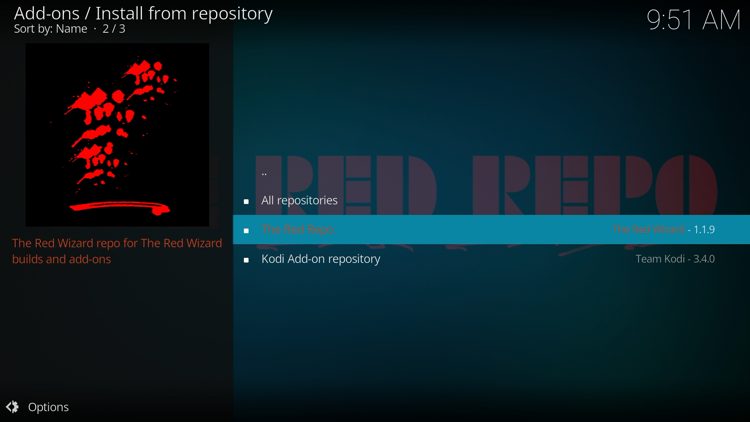
For third party addons, the process usually involves adding an external source, installing a repository zip file, then installing the addon from that repository. But again, you should only do this with sources you fully trust and only for lawful content.
How to Set Up Debrid in Kodi
Most Debrid only addons use a resolver tool or built in account section where you can authorize your Debrid account.
The general process usually looks like this:
Open the addon settings.
Find the accounts, providers, or resolver section.
Choose your Debrid provider.
Click authorize.
A pairing code appears on screen.
Open your Debrid providers official website on another device.
Enter the code while logged into your Debrid account.
Return to Kodi and confirm the account is connected.
Once connected the addon may show premium cached links instead of free links.
A good tip: after authorizing Debrid clear the addon cache and restart Kodi. This often helps the addon refresh providers and account settings.
Why Genesis Style Addons Stop Working
If a revived Genesis Kodi addon is not working, do not panic Third party Kodi addons break all the time.
Common reasons include:
The repository went offline.
The developer abandoned the addon.
Kodi updated and broke compatibility.
Debrid authorization expired.
The addons providers stopped working.
Dependencies are missing or outdated.
Your internet provider is blocking certain sources.
The addon was removed due to copyright complaints.
This is one reason relying on unofficial addons can be frustrating. They may work today and disappear tomorrow.
Troubleshooting Genesis Kodi Addon Problems
If you are using a lawful Debrid only setup and the addon is not behaving, try these basic fixes.
1. Reauthorize Debrid
Debrid tokens can expire or disconnect. Go into the addon settings and authorize your Debrid account again.
2. Clear Cache
Old cached data can cause empty menus, missing links, or playback errors. Clear the addon cache and restart Kodi.
3. Update Kodi
If you are using an old Kodi version, some addons and dependencies may fail. Updating Kodi can fix compatibility problems.
4. Check the Repository
If the repository is offline, the addon may not update. An abandoned repository is a red flag.
5. Test Another Official Addon
If official addons work but the third party addon does not, the issue is probably with the addon, not Kodi.
6. Avoid Overloaded Builds
Some Kodi builds include too many addons, skins, and dependencies. A clean Kodi setup is usually faster and more reliable.
Best Legal Alternatives to Genesis Kodi Addon
If your goal is to enjoy Kodi without worrying about sketchy sources, official addons are the better route.
Kodi’s official addon section includes categories for video, music, pictures, games, subtitles, weather, program addons and more. Official addons can be installed directly from Kodi and are maintained through Kodi’s ecosystem.
Depending on your location, you may find official or legitimate addons for public broadcasters, YouTube style platforms music services, media libraries, podcasts, and personal server tools.
You can also use Kodi with:
Your own local movie library
Home videos
Public domain films
Legal IPTV subscriptions
Personal media servers
PVR and DVR setups
Official streaming service addons where available
That way you get the best part of Kodi: customization, organization, and a big screen friendly interface, without worrying about legal gray areas.
Should You Use a VPN With Kodi?
A VPN can improve privacy especially on public Wi-Fi or networks you do not control. It can also help keep your browsing activity more private from local network observers.
But do not treat a VPN as permission to access illegal streams. A VPN is a privacy tool not a legal workaround.
If you use Kodi for legal streaming personal media, or public domain content, a VPN may still be useful for general privacy. Just choose a reputable provider, avoid free unknown VPNs and make sure your connection speed is good enough for streaming.
Tips for a Cleaner Kodi Setup
A smooth Kodi experience is not just about addons. It is also about maintenance.
Keep your setup simple.
Remove addons you no longer use.
Avoid installing multiple huge builds.
Clear cache occasionally.
Update Kodi from official sources.
Back up your settings before major changes.
Use lightweight skins if your device is slow.
Restart Kodi after major addon changes.
If you are using a Fire TV Stick, Android TV box, or low storage device this matters even more. Too many addons can slow everything down.
Final Thoughts
The revived Genesis Kodi addon gets attention because the original Genesis name has a lot of history in the Kodi community. For many users it brings back memories of early Kodi streaming setups. But the Kodi world has changed a lot and users need to be more careful now.
A Debrid only addon may offer better performance, but that does not automatically make it safe or legal. Before installing any third party Kodi addon, check the source, understand what it does protect your device and only access content you have the legal right to watch.
For the safest experience, stick with Kodi’s official repository, legal streaming options and your own media library. You will get a more stable setup fewer broken addons, and a lot less stress.
In the end Kodi is still one of the most powerful media center apps around. Use it smartly, keep it clean and enjoy your entertainment setup the right way.